
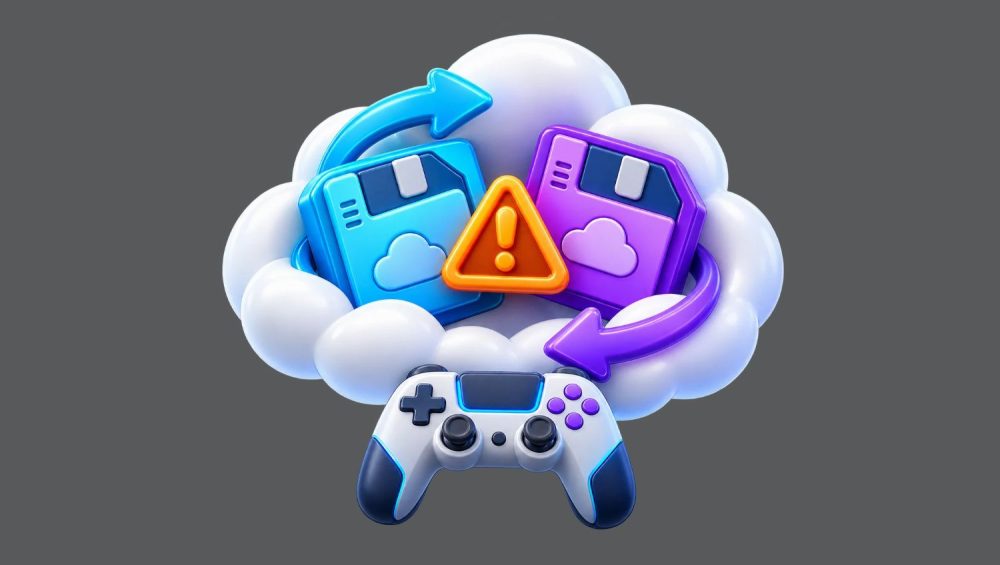
You finish a difficult section of a game on your laptop, then later open it on your desktop or console. Instead of seeing your latest progress, the game asks which save you want to use. One file is newer but looks wrong. The other has the right amount of playtime but an older date. A single hurried click can send you back hours, days or even months.
Cloud saving is designed to make gaming easier. It can carry progress between devices, restore files after a reinstall and reduce the risk of losing everything when hardware fails. However, it is not the same as a guaranteed backup. A cloud service tries to keep versions in sync.
When it does not know which version is correct, it may ask you to decide. If you choose the wrong one, the incorrect save can replace the good one across every linked device.
Understanding how these conflicts happen gives you a far better chance of preventing them and recovering safely when they do.
Why Cloud Saves Conflict in the First Place
A cloud conflict happens when a game finds two versions of your progress that do not match. This often occurs after playing offline, using more than one device, reinstalling a game or interrupting a sync before it has finished.
Imagine that you play for three hours on a train without internet access. When you get home, you open the same game on another device. The second device downloads an older cloud version because it has not yet received your offline progress. If you launch the game immediately, both devices now have different ideas about what your latest save should be.
The same problem can happen after a crash. A game may write a local save shortly before closing, while the cloud upload fails or stalls. When you restart, the platform sees a recent local file and an older online copy. Neither one is necessarily corrupt, but the service cannot always tell which version contains the progress you want.
Modded games and games with several save slots can make this more complicated. One profile may sync correctly while another does not. A game can also store screenshots, settings, character data or world files separately. Replacing one folder without checking the others may solve one issue while creating another.
Do Not Choose a Version Too Quickly
The most important rule is simple: pause before selecting either option. A conflict message can look routine, especially when you just want to get back into the game. However, once the wrong file syncs successfully, recovery becomes harder.
Look carefully at the date, time, total playtime, save-slot name and device listed in the message. These details may reveal which version is more likely to be correct. A file created ten minutes ago is not automatically the best choice if you have not played on that device for a week. A higher playtime number is usually helpful, but some games count menu time or use different profiles.
If you are unsure, do not open the game and keep clicking until the problem disappears. Disconnect the device from the internet if possible. This can stop an older file from uploading and overwriting a newer version while you investigate.
Take screenshots of the conflict prompt and note the file details. It may feel overly cautious, but this record can help you work out what happened later. If you contact platform support or the game developer, they may also ask when you last played and which device held the correct progress.
Create a Backup Before You Try to Fix Anything
Cloud sync is convenient, but a separate backup gives you a safety net. PC players can usually copy save folders to an external drive or secure cloud-storage folder before troubleshooting. The exact location varies by game, so check the developer’s support information or reliable community documentation before moving files.
For games that store saves locally, copy the original folder rather than cutting it. Do not rename, edit or delete the original until you know the game is working properly.
Label your backup clearly with the game name and date. If there are several files, keep them together. A save file may depend on another file that stores settings, character inventory or world data.
Console players have fewer manual options, but they should still understand whether their platform supports cloud saves, whether the feature requires a membership and whether the game has its own server-based progress system. Some online games store most progression on the publisher’s servers, while others rely on the console profile or platform cloud.
It is also worth protecting your account access. A saved game cannot help much if you lose access to the platform account where it lives. The practical steps in What Happens to Your Digital Games If Your Account Gets Banned? are a useful reminder that purchases, saves and account security are closely connected.
A Safe Way to Resolve a Save Conflict
Start by identifying the device you used most recently. If you played on your PC last night and the console has not been touched for a month, the PC’s local save is probably the stronger candidate. Make a backup before allowing anything to sync.
Next, close the game completely on all other devices. A game left open in the background can upload an old autosave while you are trying to restore the right one elsewhere. Wait until only the device holding the best version is active.
Once you have backed up the likely correct files, reconnect to the internet and allow that version to sync. Let the process finish before launching the game on another device. Interrupting a download or closing the launcher too early can recreate the same conflict.
Then test the game. Open the relevant save slot, check the story progress, inventory, achievements and settings. Only after you have confirmed that everything is correct should you launch the game on the second device and allow it to update.
If neither version looks right, avoid repeated syncing. Check for older local backups, platform-specific recovery options or developer support. Some games maintain rolling autosaves or separate recovery files even when the main save appears lost.
Build a Better Save Routine
You do not need to back up every game after every session. Focus on the games where lost progress would genuinely hurt: long role-playing games, survival worlds, difficult campaigns, heavily modded games and titles with hundreds of hours invested.
Before changing hardware, reinstalling an operating system, adding mods or moving between platforms, make a copy first. Let the cloud sync finish before shutting down a device. Avoid opening the same game on two devices at nearly the same time, particularly if one has been offline.
Cloud saves remain useful. They are one of the best ways to keep a game library flexible. Treat them as a syncing tool, though, not as the only copy of progress that matters.
Final Thoughts
A cloud-save conflict is not always a disaster, but reacting too quickly can turn it into one.
Check the details, protect the version you trust and make a separate copy before choosing which save to upload. A few careful minutes can preserve the progress that took hundreds of hours to earn.
#GamingSaves #CloudGaming #PCGaming #GameLibrary #1on1GamingHub